

How to quickly connect wireless headphones to your phone? Here are the simple steps:
- Turn on Bluetooth on your phone : Android – Settings > Bluetooth, iPhone – Settings > Bluetooth.
- Charge your devices : Make sure the battery level is at least 50%.
- Activate pairing mode : Hold the headphone button for a few seconds until the LED indicator starts flashing.
- Find the headphones in the Bluetooth list : Select the headphones name and pair.
- Test the sound : Play music or a call to check the connection.
If you're having trouble, check that your devices are up to date, check for interference, and try pairing again. More detailed tips and solutions are below.
How to Connect Bluetooth Wireless Earbuds to Phone - Tutorial 2020
What you need before pairing
Proper preparation is important for successful device pairing.
Check Bluetooth capabilities
Make sure both your phone and headphones support Bluetooth technology. Modern devices usually use Bluetooth 5.0 or higher, which ensures fast pairing and a stable connection [7] .
You can find your phone's Bluetooth function: on Android devices - "Settings" > "Bluetooth", and on iPhones - "Settings" > "Bluetooth" [2] [3] . If you are using wireless headphones offered by AUTOGARSAS.LT, this requirement is already met - all the necessary information is provided in the product description or user manual.
Charge your devices
Before you begin, make sure that both devices have at least 50% battery power. Low battery levels can cause pairing or performance issues [2] [3] .
You can monitor the battery level via the device's status bar or LED indicators. Once paired, many headphones allow you to see the battery status directly on your phone via the Bluetooth menu or dedicated apps. For example, the battery level of Apple AirPods is automatically displayed on your phone when you open the case next to the device [5] .
Update the software
Updating your device software helps prevent potential connection issues and ensures smooth operation [7] . You can check for system and headset updates in Settings (Android) or Settings (iPhone) [2] [3] .
If your headphones have a dedicated app, use it to update. For example, Sony headphones can be updated via Sony Headphones Connect, while Apple AirPods update automatically when connected to an iPhone [2] [3] .
How to enable pairing mode
Pairing mode allows your phone to detect your headphones and establish a secure connection. If this mode is not enabled, your headphones will not be visible in the list of Bluetooth devices [2] [3] .
Most headphones enter pairing mode by holding down the power or Bluetooth button until the LED indicator starts blinking [2] [3] .
For example, the Sony WH-1000XM5 headphones require a 7-second button press until the indicator starts flashing blue and you hear the message "Pairing" [1] [3] . This mode is valid for 5 minutes - if the pairing fails, the procedure will need to be repeated [1] [3] .
Apple AirPods pair automatically when you open the case next to your phone. If you're using another device, press and hold the button on the case until the indicator light starts flashing white [4] [5] [6] [9] .
Some Sony models support Android Fast Pair, which allows you to pair your headphones with compatible devices more quickly. [3] [4] The headphones can also store pairing information for up to 8 devices - the oldest pairing will be automatically deleted when you pair a ninth device. [1] [3]
Once you're ready and your devices are ready, you can activate pairing mode. Below, we'll discuss how to conveniently pair your headphones with your phone.
How to connect wireless headphones step by step
Connecting wireless headphones to your phone is pretty easy and only takes a few minutes. The process is very similar on both Android and iOS devices.
Turn on Bluetooth on your phone.
Start by turning on the Bluetooth feature. You can do this in the following ways:
- On Android devices : Open the quick settings menu or go to Settings > Bluetooth.
- On iPhone : Open Settings > Bluetooth or use Control Center.
In the Lithuanian menu, the names remain the same: "Bluetooth" and "Paired devices".
Put the headphones into pairing mode
Each headphone model has its own way of activating pairing mode. Here's how to do it with popular models:
- Apple AirPods : Open the charging case next to your iPhone and follow the onscreen instructions. If you're using another device, press and hold the button on the back of the case until the LED indicator starts flashing white.
- Sony WH-1000XM5 : With the headphones off, press and hold the power button for about 7 seconds until the indicator starts flashing blue and red.
- Other models : Most headphones enter pairing mode by pressing and holding the Bluetooth button for a few seconds until the indicator starts flashing rapidly.
Once the headphones are ready, proceed to search for them on your phone.
Find and choose your headphones
When Bluetooth is turned on and the headphones are in pairing mode, their name (for example, Sony WH-1000XM5 or AirPods) should appear in the "Available devices" list. Select the name of the headphones to begin the pairing process. You may receive a message on the screen ("Connected") or a beep from the headphones when they are successfully paired.
Test the sound and adjust the settings
Once pairing is complete, check that the sound is working properly. Play music or other audio and adjust the settings if necessary:
- On Android devices : Go to Settings > Sound and adjust the audio output.
- On iOS devices : Go to Settings > Bluetooth, click the information icon next to your headphones' name, and adjust your call or media audio settings.
Most wireless headphones remember the last device they were used with, so they will connect automatically the next time you turn on Bluetooth. You only need to go through this pairing process the first time with each new device.
sbb-itb-02aace5
Solving common login problems
About 30% of users experience at least one login issue within the first year of use [7] . The good news? You can fix many of these issues yourself. Here are some practical tips to help you overcome the most common issues.
Headphones don't appear in the Bluetooth list
This is one of the most common issues - the headphones don't appear in the list of available devices. This can happen if the headphones are not in pairing mode, the battery is low, or they are already connected to another device.
- First, make sure your headphones are sufficiently charged. A low battery level may interfere with pairing.
- Restart both the headphones and the device you are trying to connect them to.
- If the problem persists, disconnect the headphones from other Bluetooth devices to eliminate possible interference.
- In some cases, you may need to reset your headphones to factory settings. On most models, this is done by holding down the power or dedicated reset button for 5–10 seconds until the LED indicator starts blinking or changes color [2] [3] .
The sound cuts out or sounds bad.
If the audio is interrupted or sounds poor, the cause may be wireless interference, too much distance between devices, or outdated software. Interestingly, software updates help solve up to 60% of such problems [7] .
- Reduce the distance between the headphones and your phone. While Bluetooth typically has a range of up to 10 meters, walls and other obstacles can reduce this range.
- Check for obstacles between the devices and avoid sources of interference.
- Update your headphones' software. For example, Sony WH-1000XM5 users can use the Sony Headphones Connect app, which supports Lithuanian. Meanwhile, Apple AirPods updates are installed automatically when the headphones are in the case and connected to an iPhone.
- If the problem persists, disconnect the headphones and try pairing them again.
Microphone or call audio issues
The microphone or sound quality during calls can be disappointing, especially in noisy environments. Even models like the Apple AirPods can face these challenges.
- Make sure that the headphones are selected for both media and call audio in your phone's Bluetooth settings. On Android devices, you can find this in Settings > Bluetooth, or on iOS devices, by tapping the information icon next to the headphones' name.
- Check that microphone permissions are enabled for the apps you're using. If you're having problems, try your headphones with another app or device.
- Also, inspect the microphone holes to make sure they are not clogged with dust or dirt.
| Problem type | Most common causes | Recommended solutions |
|---|---|---|
| Doesn't appear in the Bluetooth list | Unpaired mode, low battery, interference | Enter pairing mode, charge, restart, reset |
| Sound cuts out/sounds bad | Interference, too far away, outdated software | Approach, update software, re-pair |
| Microphone/call issues | Incorrect settings, lack of permissions, application conflicts | Check settings, enable permissions, update software |
If these tips do not help, contact AUTOGARSAS.LT specialists. They will provide assistance tailored to your headphone model and help you solve more complex technical problems.
The most popular wireless headphone models AUTOGARSAS.LT
This section reviews two of the most popular AUTOGARSAS.LT wireless headphone models , which stand out for their reliability and functionality. They not only easily pair with various devices, but also ensure a high-quality audio experience.
AUTOGARSAS.LT offers a wide selection of wireless headphones, but these models are worth paying special attention to - they perfectly adapt to the everyday needs of Lithuanians.
Apple AirPods
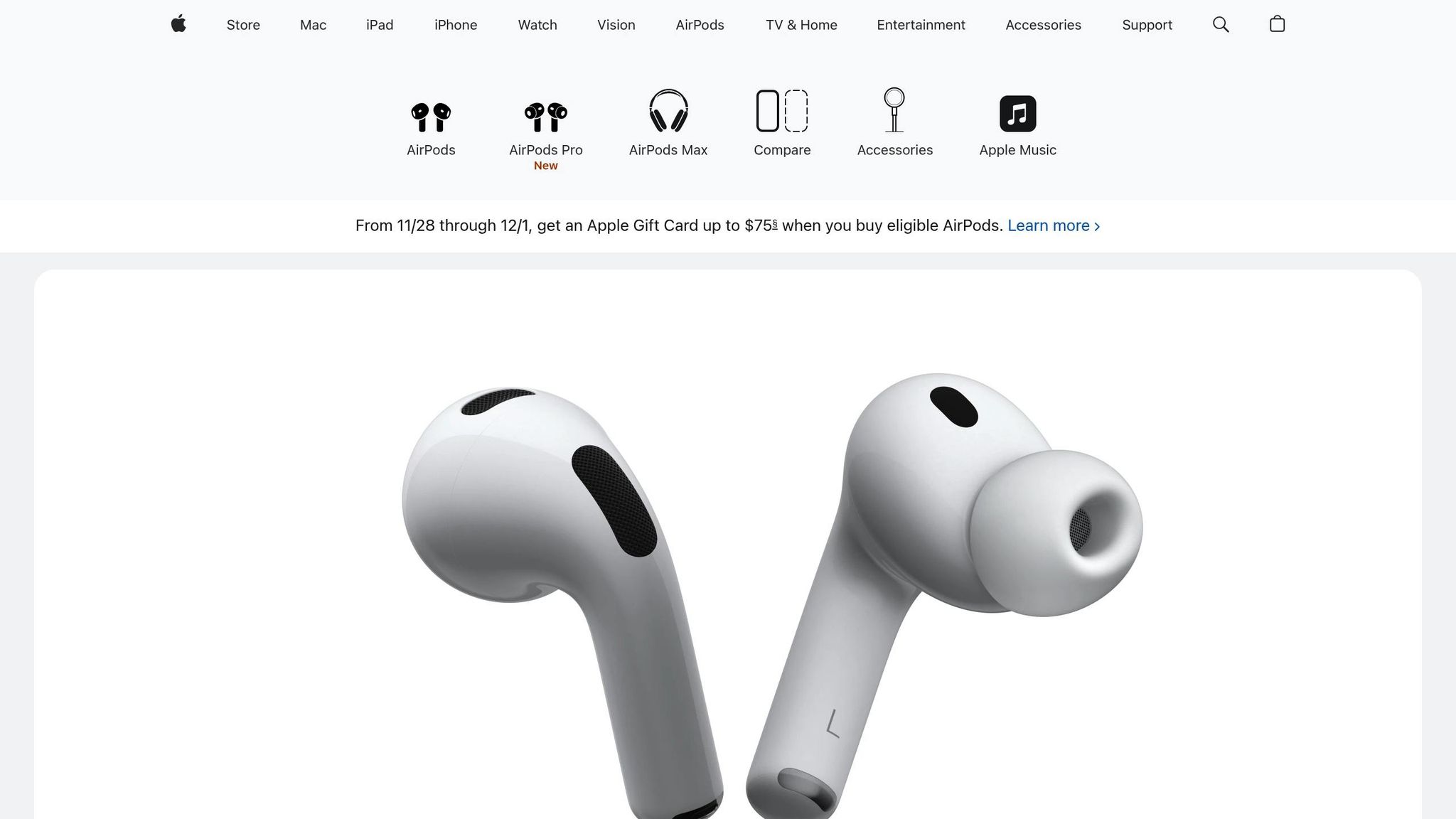
Apple AirPods are known for their simplicity and convenience. They pair automatically with iOS devices and provide instant access to Siri. The third-generation model offers up to 6 hours of listening time on a single charge, and up to 30 hours with the charging case [7] . They also work with Android devices via standard Bluetooth. You can find pairing instructions above [9] .
Sony WH-1000XM5
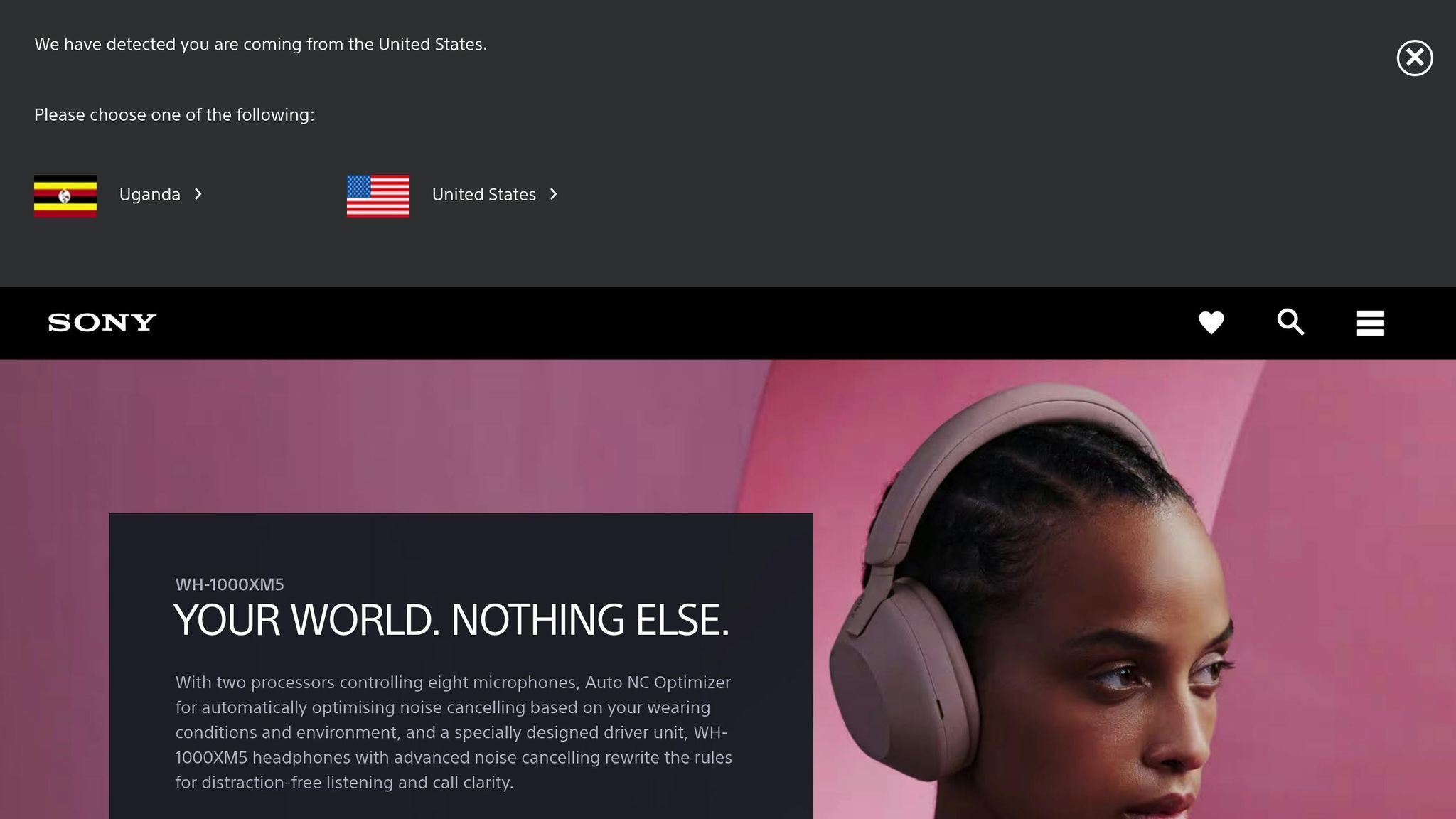
The Sony WH-1000XM5 features advanced noise cancellation and exceptional comfort. These over-ear headphones offer up to 30 hours of music playback with noise cancellation on or up to 40 hours with noise cancellation off [7] . They also feature Bluetooth multipoint connectivity, allowing you to connect to two devices simultaneously [7] . Additional features such as adaptive sound control and 360 Reality Audio can be accessed using the Sony Headphones Connect app [7] [8] . Pairing instructions are provided above.
Model comparison table
| Model | Main functions | Linking method | Battery life | Price (€) | Accessibility AUTOGARSAS.LT |
|---|---|---|---|---|---|
| Apple AirPods (3rd generation) | iOS integration, compact design, automatic switching | Open the case next to the iPhone | 6 hours (headphones), 30 hours (with case) | 180–220 | In stock |
| Sony WH-1000XM5 | Noise cancellation, multipoint connection, long operating time | Hold the button for 5 seconds. | 30 hours (with noise cancellation) | 350–400 | In stock |
Both models support Lithuanian language in apps and settings. In addition, AUTOGARSAS.LT provides local warranty and technical support, which is extremely important for local users.
Vandal Paulius, AUTOGARSAS.LT customer: "I got to try out a few headphones, I bought the first ones they recommended because they best met my needs. Super helpful and friendly employees ❤️" [1]
If you often travel or work in noisy environments, the Sony WH-1000XM5 will be a great choice. Meanwhile, the Apple AirPods are more suitable for everyday use or sports due to their lightweight and compact design. Below we will discuss how you can use the help of AUTOGARSAS.LT specialists.
Get expert help from AUTOGARSAS.LT
Connecting wireless headphones may seem simple, but sometimes questions or technical difficulties arise. That's where the experts at AUTOGARSAS.LT come to the rescue. Whether you need advice on choosing the right model or help with connection problems, our team is ready to help.
AUTOGARSAS.LT has been working with audio and video systems since 1997, so the accumulated experience allows us to professionally solve even the most complex situations. Are you looking for Apple AirPods for everyday use or Sony WH-1000XM5 for traveling with noise cancellation? We can help you choose the best option for your needs. In addition, our Kaunas showroom provides the opportunity to try headphones live and find what is right for you.
Advantages of Kaunas salon
By visiting our showroom in Kaunas (Armatūrinininkų g. 1), you will have the opportunity to try out different headphone models live. This is a great opportunity to compare sound quality and functionality. Our consultants will not only show you how to pair the headphones with your phone, but also explain how to use additional functions through the manufacturers' apps.
We offer personalized consultations to help you choose headphones according to your needs and budget – from €149 to €449. Whether you are looking for headphones for sports, travel, or everyday music listening, our specialists will help you find the most suitable solution.
Technical support and warranties
If you are experiencing connection problems or other technical issues, our team is ready to help. Bluetooth connection problems, software updates or other challenges - we can solve them all. Contact us by phone +370 683 90000, by e-mail info@autogarsas.lt or visit the showroom on weekdays or Saturdays.
All models we sell come with a local warranty and after-sales service. This is especially important when it comes to more expensive equipment. In addition, our specialists can help you configure apps such as Sony Headphones Connect so you can get the most out of your headphones.
Contact AUTOGARSAS.LT – we are ready to answer all your questions and ensure that your experience is smooth and enjoyable.
View all Wireless Headphones
FAQs
Why don't my headphones appear in the Bluetooth devices list?
If your headphones don't appear in the list of Bluetooth devices, first make sure they're turned on and in pairing mode . Also, make sure your phone's Bluetooth is turned on and that the headphones are close enough to your phone - this can be important for a proper connection.
If the problem persists, try the following:
- Restart both the headphones and your phone.
- Restore the headphones to factory settings , following their user manual.
If that doesn't work, check if the headphones are connected to another device. If they are already paired with another device, it may be interfering with pairing with the new one.
How do I update the software on my wireless headphones to avoid connection issues?
To maintain a stable connection with your wireless headphones, it is necessary to regularly update their software. This not only helps to avoid connection problems, but also ensures better sound quality and support for new features. Most manufacturers offer dedicated apps that make it easy to check for and install the latest updates.
How to update the software:
- Download the manufacturer's app to your smartphone. For example, the Sony Headphones Connect or Apple AirPods settings app.
- Turn on Bluetooth and connect to your headphones.
- Open the app and check for any suggested updates. If so, follow the instructions to install them.
If the update process fails or you have other questions, you can contact AUTOGARSAS.LT specialists. They will not only help you solve technical problems, but also ensure that your headphones work flawlessly.
How to improve sound quality if headphones sound bad?
If your wireless headphones sound worse than you expected, there are a few steps that can help improve their sound quality:
- Check Bluetooth connection : Make sure the headphones are properly paired with your phone and there is no interference between the devices. Other Bluetooth devices nearby may be causing interference.
- Update the software : Software updates for both the headphones and your phone often resolve technical issues, including sound quality issues.
- Adjust your sound settings : Take a look at your phone's equalizer settings - you may need to adjust them to suit your listening habits.
- Clean your headphones : Dirt or earwax can block the speakers and affect the sound. Gently clean your headphones, following the manufacturer's instructions.
If these steps do not help, it is likely that the problem lies in the headphones themselves. In this case, it is worth contacting AUTOGARSAS.LT specialists, who can help solve the problem or offer new, high-quality headphones that meet your needs.


